


Nothing stings like watching your best sales day of the year turn into your worst headache. One minute orders are rolling in, and the next, your checkout page is frozen while customers give up and leave.
The frustrating part is your site probably handles everyday traffic without a hitch. But when visitor numbers suddenly spike, those extra requests hit your hosting, database, and checkout all at once. The result is a slow site and a shopping experience nobody wants to finish.
WP Guard created this guide to help your store handle WooCommerce holiday traffic without the last-minute scramble. Keep reading to learn how.
Why WooCommerce Stores Crash During Holiday Traffic (Even With a “Good” Host)

Most WooCommerce crashes during holiday traffic come down to three things: uncacheable checkout pages, plugin conflicts, and hosting limits.
Take uncacheable checkout pages. These are pages that can’t be saved and served the same way to everyone because each shopper has their own cart and checkout details.
So every time a customer reaches the cart or checkout, your server has to process that request. During a sudden holiday traffic surge, all those requests can quickly overwhelm your server and cause the site to crash.
Then there are plugin conflicts. A new holiday promotion plugin can interfere with your existing cart or checkout plugins. The problem may go unnoticed until more shoppers put those features under heavier use. When it does, checkout can slow down, or key functions can fail.
Hosting limits are another common bottleneck. Shared hosting limits how much server capacity your store can use, so a sudden traffic spike can push you past that limit. Once you hit that limit, pages can slow down or become unavailable to shoppers.
Get Your Store’s Speed Ready Before the Holiday Rush
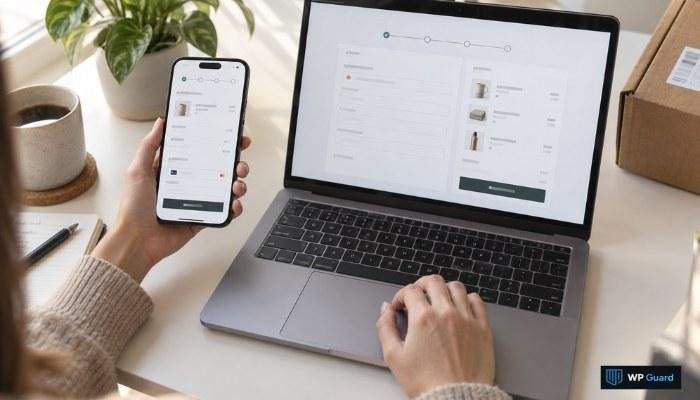
Your site doesn’t need to be dramatically slow to cost you a sale. During the holidays, when shoppers are scrambling to grab a deal, even one extra second can feel like forever. Why take that risk? Check your site’s speed now and fix any issues before traffic picks up. You can do that in several ways, such as:
- Test Your Site Speed: Use a free tool like Google PageSpeed Insights. Just paste your site’s URL in, and it’ll show you your load time and what’s slowing things down.
- Compress Product Images: If your site is slower than usual, large image files are one of the first things to check. A few large images might not make much difference, but dozens of them can slow your pages down. A free tool like TinyPNG compresses them without losing quality.
- Remove Unnecessary Plugins: Go through your active plugins and deactivate anything the store doesn’t need. Every active plugin loads its own files and can run extra background processes on each page, even ones you rarely use. Trimming the unnecessary ones lightens that load before traffic increases.
These are some of the checks we run when auditing WooCommerce stores. They give us a fast way to catch speed problems before heavier traffic makes them worse.
Make Sure Checkout Can Handle More Customers
One common checkout problem is forcing customers to create an account before they can place an order. In fact, 19% of shoppers abandon their cart when a store requires account creation first, according to Stripe.
Guest checkout removes that barrier and gives shoppers a faster way to complete their purchase. To enable it in WooCommerce, go to WooCommerce → Settings → Accounts & Privacy and check “Allow customers to place orders without an account.”
Payment gateways are another potential problem. Every gateway has its own processing limits, and reaching that limit during a busy sales period can prevent orders from going through. Check your gateway’s limits ahead of time so you know it can handle the number of transactions you expect.
Look at your checkout form, too. If you have extra fields, such as a second phone number or company name, remove them. The more fields shoppers have to fill out, the longer checkout takes. So keep the form limited to essential details, like their name, contact information, and payment and shipping details.
Keep Your Inventory Accurate as Orders Increase
Selling out of your most popular products sounds like a good problem to have. But it can be a headache during the holiday season if your inventory isn’t updated accurately.
We’ve seen stores oversell products because stock levels didn’t update quickly enough across their sales channels. The result is an order for a product the store can no longer fulfill, followed by a disappointed customer and a refund.
Fortunately, you don’t need anything fancy to keep track of your stock. WooCommerce has built-in inventory management tools that let you track stock levels and control what happens when products run out.
To set it up, go to WooCommerce → Settings → Products → Inventory and make sure stock management is enabled. Then check your individual products to confirm that stock quantities are accurate and your backorder settings match your actual policy.
That said, manually keeping stock levels updated across multiple sales channels can become difficult when orders start coming in quickly. In such cases, you can use an inventory sync tool like Stock Sync. It can update your stock automatically as orders come in, so a sale on one channel is reflected on the others. That helps prevent you from selling the same item twice.
It’s also worth setting up low-stock notifications in WooCommerce. These alerts tell you when a product’s stock falls below a level you choose. For example, if you only have five units left, WooCommerce can notify you before they sell out. You then have time to restock or update the product’s availability.
Test How Much Traffic Your Store Can Handle
The only reliable way to know how your store will perform when traffic surges is to test it before real customers arrive. Load testing simulates a large number of visitors hitting your store at the same time and shows you where it starts to struggle.
A tool such as Loader.io can help you simulate a traffic spike. Start with key pages such as your homepage and product pages, then test main parts of the checkout process if your tool supports them. Watch how quickly pages load as visitor numbers increase and whether they start returning errors.
For instance, your store might start slowing down at 80 concurrent visitors. If you’re expecting several hundred shoppers during a Black Friday promotion, you’ll know you need to make changes before the sale. Those changes could include:
- Upgrade your hosting plan for more server resources.
- Move to managed WooCommerce hosting if your current setup can’t handle the expected demand.
- Add a CDN to reduce the amount of static content your main server has to deliver.
Quick tip: Run this test at least a few weeks before your sale. That gives you enough time to make any of these changes if your store needs them.
What to Do if Traffic Spikes Anyway
Even with everything checked ahead of time, more visitors can still show up than your store is ready for. If that happens, don’t start making major changes blindly. Work through a few quick checks first:
- Check Whether Your Site Is Down: An uptime monitoring tool like UptimeRobot can alert you when your site becomes unavailable, often before customers report it. If the site is still online, you can focus on finding what’s causing the slowdown.
- Turn Off Non-Essential Plugins: Temporarily disable plugins that aren’t needed for browsing or checkout. This can reduce the work your server has to handle while traffic is high.
- Post a Short Notice on Your Site: If pages are loading slowly but the store is still working, let shoppers know you’re experiencing unusually high traffic. It’s better than leaving them wondering whether the site is broken.
Do these three things quickly, and your store is more likely to stay online, even if it’s slower than usual.
Don’t Leave Holiday Performance to Chance
Holiday traffic is predictable. But the problems it creates don’t have to be. Run the speed checks, test your checkout, verify your inventory, and load-test the store before your busiest sales days arrive. That way, when the tests reveal a problem, you’ll have time to fix it and test again.
And if you’d rather have someone watching the store while you focus on running it, WP Guard can help. We can monitor your store’s performance and flag problems before they affect customers.
 Wild Rise